
Budgets are all about preparing for the expected and the unexpected as realistically as possible in the fastest time possible. This article will guide you to prepare next year’s budget using Calxa.
For a quick start, prepare a budget for Next Year that is based on past performance and future projections. The best results will come from a good mix of strategic and tactical planning that will in turn give you greater confidence in your decision making.
Before you start
In preparation for any major changes to your budgets, we recommend taking a snapshot. If you decide you want to unwind your changes at any time, that gives you a clean data point to return to.
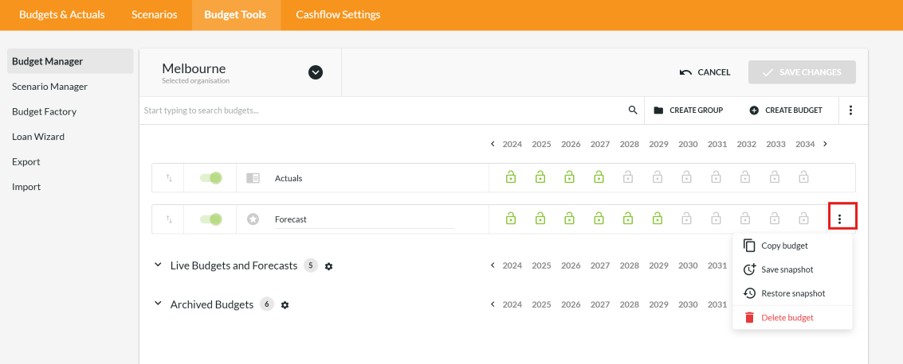
Use the 3 dots to the right of the budget and then Save snapshot. You’ll see this is the spot where you can later restore the snapshot if you need to do that. Now you can continue knowing that you can reverse your changes if you make a mistake.
Getting Started
The fastest way to get your budget under way in Calxa is to use the Budget Factory. In a couple of minutes, it will step you through creating a budget based on the current year actuals and projecting them forward to next year (and the one after and the next 10 years if you really need to).
It will do this for all your myriad business units – every program, job or tracking category done in a couple of minutes.
Even though you don’t have a full year of actuals for the current year, Calxa is smart enough to use your budget for the rest of this year. If you have multiple budgets, it will use the one nominated as the Main Budget. You can set your Main Budget in the Budget Manager.
Be aware that the Budget Factory won’t copy across formulas to the next year but see below for some guidance on how to do that. The Budget Factory can still be very useful in getting the bulk of your budget set up for next year. There are many account lines that won’t change significantly. Use it to get them set quickly and then spend your time and energy on the ones that are more variable, or problematic.
Exporting and Importing
If you need to use complex calculations that don’t suit our formulas, then you should look at the Export and Import functions, which enable you to export your budget to Excel. This is one way to delegate portions of the budget to department heads or those who may not have access to Calxa.
Copying Budget Formulas
It’s an easy process to copy formulas from one year to the next, once you know how. The trick is to include something with the formula in the range you are displaying. So if, for example, you have formulas in your budgets for the year July 2026 to June 2027, to copy them forward, set the visible date range as June 2027 to June 2028. Then select an account by clicking on a name, click Formula and apply the formula to the whole row. This same technique also works for Metrics.
There is another way to do this, that works great if you have multiple lines together with different formulas.
- Simply highlight the June 2027 values for those cells.
- Then, from the ellipsis at the bottom, use the Copy Forward option to replicate all the formulas together.
If you need to update the same formula for an account across multiple business units, change the Layout to business units. Then select the account on the left side, drag your mouse to select all the business units and apply the formula to them all at once. It’s a simple process then to go through each of your accounts and repeat the process.
Delegate to your team
The other way to delegate the budgeting duties is to add your team members to Calxa – which means you don’t have to do it all on your own! Just invite the department managers and give permissions so they can edit their own budgets. Simply invite people as needed and then remove them later if you don’t want to give permanent access. Some organisations give reporting access all year round but budgeting access for just a couple of months while everyone is working on next year’s budget.
There are no limits to the number of users you can add to Calxa and no associated costs.
Collaborate with your team
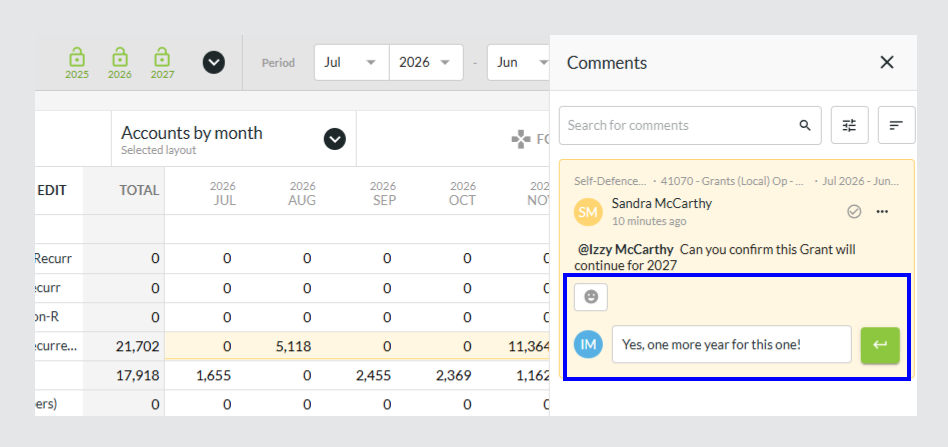
Once you have invited your team to Calxa, you can easily work together to edit your budgets. Simply select one or more cells in the budget and use the ellipsis at the bottom to add a comment. @mention one of your colleagues and they will be notified immediately if they are online or by email if they’re not. They’ll be able to see your changes in real time and reply to your comment. Once the issue is complete, mark the comment as resolved.
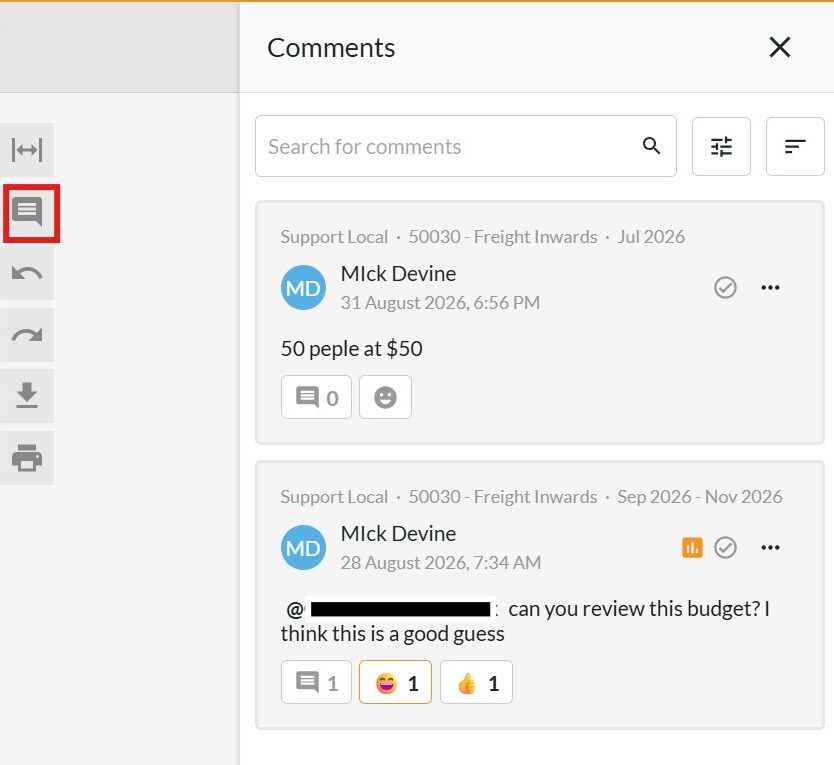
You can see the history of all the comments on the business unit and dates you are reviewing on the right side of the screen.
Getting the Balance Sheet Budget Right
It is important, especially for cashflow forecasting, that when you have completed the Profit and Loss Budget, you look at the Balance Sheet budget.
Most of the calculations such as Super, GST and debtors/creditors are handled automatically by Calxa but you might need to add loan repayments and new projected asset purchases, for example.
Get the Balance Sheet right, and you will get reliable monthly cashflow forecasts.
Copy the Approved Budget and Lock
Once you have the go ahead from your CEO or the Board that the budget is complete, then lock the budget version for the year so it is in ‘read-only’ mode. This gives you access to your originally approved budget and any new changes are reserved for a new budget version. You can then compare this approved budget to any new budgets.
Copy and Edit Current Forecast
Once you have the go ahead from your CEO or the Board that the budget is complete, copy it to the Approved or Initial Budget using the Budget Factory and then lock the approved budget for the year so it is in ‘read-only’ mode. This gives you access to your originally approved budget and any new changes are always made in the current forecast. You can then compare this approved budget to any new budgets.
The current forecast is the one that you review and edit periodically throughout the year and use as the basis of your cashflow forecasts.
Once you’ve been using Calxa for a year or more, your budgeting options open up beyond what you could do in the first year. There’s more than one way to prepare next year’s budget so it’s important to think about which will work best for you.
For more information watch our webinar recording Web Chat: Prepare Next Year’s Budget.